
Automatic Project Time Tracking: Manage Multiple Clients and Review Hours
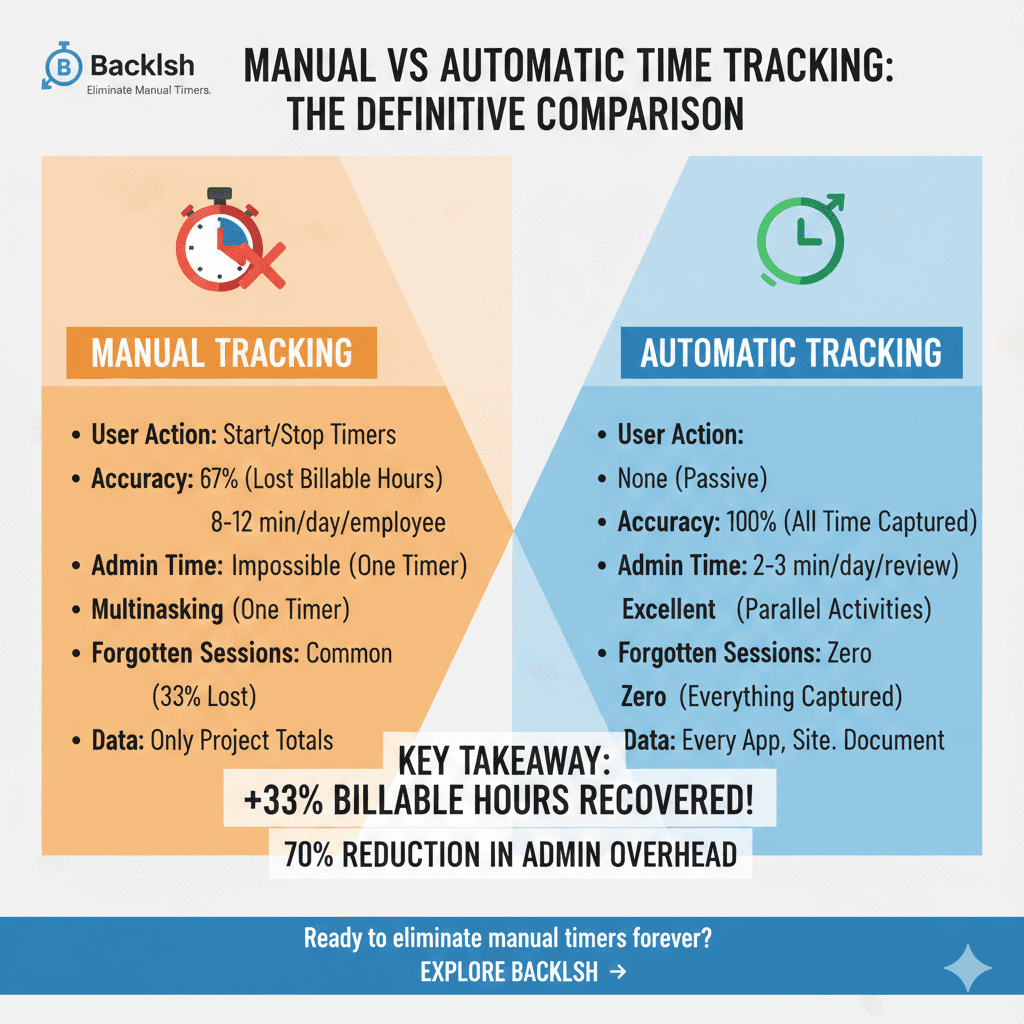
Automatic project time tracking collects work activity and uses configured rules or a review workflow to associate it with a client or project. It reduces repeated timer changes, but the assignment still needs checking when people share applications across clients.
This guide shows how to organize projects, handle ambiguous activity and compare estimated with actual effort. The sample workday and rule examples are illustrative; test the controls available in your current tool before deployment.
How should you structure clients, projects and tasks?
Use a consistent hierarchy: client → project → task or work category. Give each project a stable identifier that can appear in document names or other permitted work context.
| Level | Example | Purpose |
|---|---|---|
| Client | Northstar | Keeps reporting and access separated |
| Project | NS-104 · Website redesign | Connects effort to one scoped engagement |
| Task | Research / design / development / review | Explains the type of work |
| Billing status | In scope / approved extra / non-billable | Supports later commercial review |
Avoid creating a new project for every short task. Too much detail increases classification work; too little detail makes reporting unhelpful. Agree categories before capture begins and archive completed projects without losing their history.
How can activity be assigned to the correct project?
A tracking tool may use an application, URL, document title, project timer or a combination of signals. A rule that recognizes a client-specific identifier is usually easier to review than one that assigns all browser activity to a single client.
Backlsh describes project mapping using work context such as applications, websites and file names on its product overview. Confirm the precise matching and correction options in your account. Do not assume every product uses the same rule order or supports every signal.
| Sample work signal | Suggested classification approach | Risk to test |
|---|---|---|
| Document title contains NS-104 | Suggest the Northstar redesign | A copied or renamed document may have a stale identifier |
| Client-specific workspace or URL | Suggest the associated client | Shared portals may include more than one client |
| Figma or a general browser window | Leave for review unless context is specific | The same application serves several clients |
| No reliable matching context | Keep unassigned pending review | A default project could hide errors |
What happens when the same application serves multiple clients?
Do not map the whole application to a single client unless it is genuinely dedicated to that work. Use project-specific context where available, and retain a review queue for ambiguous records.
Before adopting a rule, test two client files in the same application, a generic dashboard, an internal task and a personal break using dummy content. Check whether the software identifies the intended project and what it does when no rule matches.
Worked example: one multi-client day
| Time | Activity | Reviewed project | Duration |
|---|---|---|---|
| 09:00–09:45 | Northstar kickoff call | Northstar redesign | 45 min |
| 09:45–11:15 | Northstar design document | Northstar redesign | 90 min |
| 11:15–11:45 | Internal planning | Internal | 30 min |
| 11:45–12:30 | Cedar analysis | Cedar audit | 45 min |
| 12:30–13:00 | Unpaid lunch | Excluded from this work log | 30 min |
| 13:00–14:30 | Cedar report | Cedar audit | 90 min |
| 14:30–15:00 | Northstar review | Northstar redesign | 30 min |
The reviewed work total is 330 minutes = 5.50 hours: Northstar 165 minutes, Cedar 135 minutes and internal work 30 minutes. The clock span is six hours including lunch. Calls and offline activity may require manual confirmation even if desktop activity is collected automatically.
Do not count simultaneous browser and app activity as two hours of labor in one elapsed hour. Use one defensible allocation, and keep the contract’s billing rules separate from raw capture.
How do you review and correct misclassified time?
- Review unassigned records and unusually large project totals.
- Compare uncertain intervals with notes, calendar events and document history.
- Correct the project, duration or billing status using the tool’s supported workflow.
- Record a correction explanation and retain original evidence where required.
- Adjust mapping rules only after testing their effect on other projects.
- Approve the period before producing billing or management reports.
Idle time needs context. Reading, thinking or a phone call may be legitimate work without mouse input. Conversely, an open application is not proof that every minute belongs on a client invoice.
How do you compare estimated and actual effort?
Use the same project scope and task categories for the estimate and actual record. Include non-billable rework in delivery effort so it does not disappear from profitability analysis.
| Task | Estimated hours | Actual hours | Variance |
|---|---|---|---|
| Research | 4 | 5 | +1 |
| Design | 10 | 12 | +2 |
| Review | 2 | 3 | +1 |
| Total | 16 | 20 | +4 / 25% over estimate |
The next action depends on the cause: a scope change, unclear brief, learning curve or missing dependency needs a different response from an inaccurate estimate. Discuss the cause before changing the schedule or price.
A practical rollout checklist
- Define capture purpose, work-hour boundaries and employee visibility.
- Create client identifiers and billing categories.
- Test mapping with shared tools and unmatched activity.
- Agree how meetings and offline work will be added.
- Review a small pilot’s totals with employees.
- Verify reporting, corrections and permissions before team-wide use.
For recovering missing entries, read how to capture billable time when you forget a timer. For downstream reporting, use consultant timesheets and agency utilization.
Frequently asked questions
Quick answers to common questions.